
Table of Contents
- Understanding How AirDrop Names Work
- How to Change AirDrop Name on iPhone
2.1 Step 1 – Open Settings
2.2 Step 2 – Navigate to General
2.3 Step 3 – Tap About
2.4 Step 4 – Edit Device Name - How to Change AirDrop Name on iPad
3.1 iPadOS Steps Explained - How to Change AirDrop Name on Mac
4.1 Using System Settings
4.2 Using System Preferences (Older macOS) - Why You Should Change Your AirDrop Name
- Privacy and Security Considerations
- What If Your AirDrop Name Doesn’t Update?
7.1 Restarting the Device
7.2 Reset Network Settings
7.3 Checking Apple ID Contact Info - Does Changing AirDrop Name Affect Other Settings?
- Common Mistakes People Make
- Best Practices When Naming Your Device
- FAQs About Changing AirDrop Name
- Final Thoughts
1. Introduction
If you’re trying to change the AirDrop name, you’re probably in one of these situations: you’re sending photos and your phone shows up as something awkward like “iPhone (3)”, or maybe your full legal name pops up on someone else’s screen and you suddenly realize—oh. That’s not ideal.
It’s a small detail. But somehow it matters.
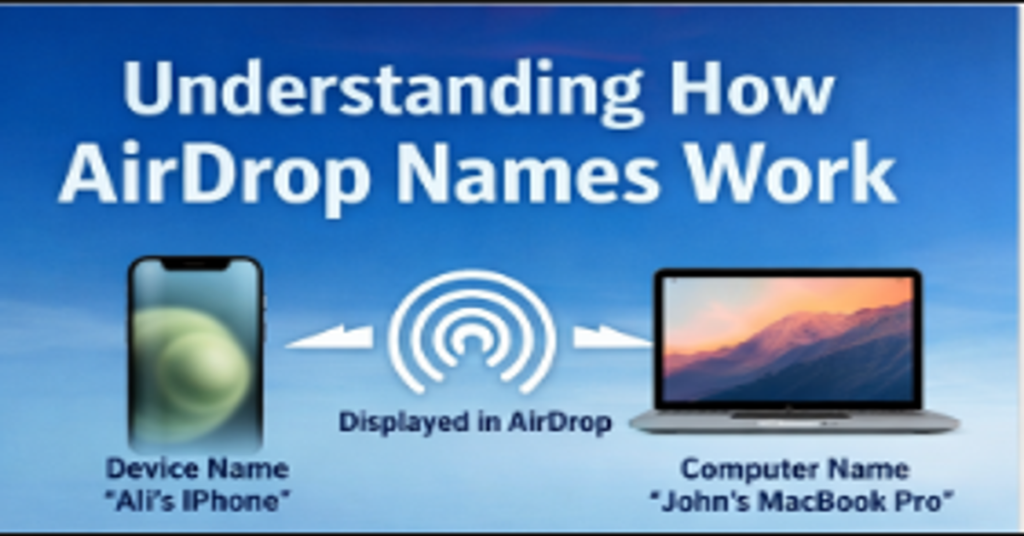
AirDrop is designed to be quick and effortless. You tap Share, choose a nearby device, and that’s it. But what many people don’t realize is that your AirDrop name isn’t controlled by a special “AirDrop setting.” Instead, it’s tied directly to your device name. How to Change AirDrop Name So if you want to change AirDrop name, you’re actually renaming your iPhone, iPad, or Mac. 1. Understanding How AirDrop Names Work
Before changing your AirDrop name, it’s essential to understand something simple but often misunderstood.
AirDrop does not have a separate nickname setting.
Instead, it displays:
- Your device name on iPhone and iPad
- Your computer name on Mac
That’s it.
So when someone nearby opens AirDrop, your phone appears exactly as it is named under system settings. If your device says “Mudasir’s iPhone 14 Pro Max,” that’s what others see.
It’s straightforward. But because Apple doesn’t label it clearly as “AirDrop Name,” people get confused.
2. How to Change AirDrop Name on iPhone
How to Change AirDrop Name. Let’s start with the iPhone. This is the most common device people want to rename.
2.1 Step 1 – Open Settings
- Unlock your iPhone.
- Tap the Settings app.
Nothing complicated here.
2.2 Step 2 – Navigate to General
- Scroll down slightly.
- Tap General.
This section contains most device-related settings.
2.3 Step 3 – Tap About
- Inside General, tap About.
- At the very top, you’ll see Name.
This is your current AirDrop name.
2.4 Step 4 – Edit Device Name
- Tap Name.
- Delete the existing name.
- Enter your new preferred name.
- Tap Done.
That’s it. You have successfully changed the AirDrop name on your iPhone.
No restart is usually required, though sometimes it helps if the old name still appears.
3. How to Change AirDrop Name on iPad
How to Change AirDrop Name. The process to change the AirDrop name on an iPad is almost identical.
3.1 iPadOS Steps Explained
Follow these steps:
- Open Settings.
- Tap General.
- Tap About.
- Select Name.
- Enter your new device name.
- Tap Done.
Since iPad uses iPadOS (which is very similar to iOS), the interface feels familiar. How to Change AirDrop Name. Once updated, your iPad will show the new name whenever someone tries to AirDrop files to you.
4. How to Change AirDrop Name on Mac
How to Change AirDrop Name. Now let’s talk about Mac. Slightly different interface, same concept.
4.1 Using System Settings (macOS Ventura and Newer)
- Click the Apple logo in the top-left corner.
- Select System Settings.
- Click General.
- Choose About.
- Click the current device name.
- Type your new name and press Enter.
Your AirDrop name on Mac is now updated.
4.2 Using System Preferences (Older macOS Versions)
How to Change AirDrop Name. If you’re using an older macOS:
- Click the Apple logo.
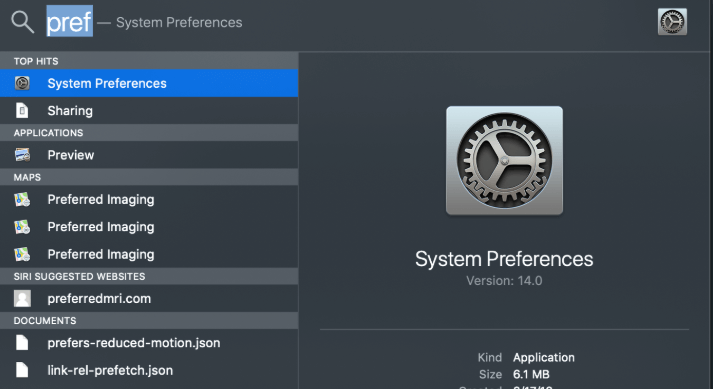
- Select System Preferences.
- Click Sharing.
- At the top, edit the Computer Name field.
Once changed, that becomes your AirDrop identity.
5. Why You Should Change Your AirDrop Name
How to Change AirDrop Name. You might think, “Why does this even matter?”
Actually, it matters more than most people realize.
5.1 Privacy
If your device name includes your full name, anyone nearby with AirDrop enabled can see it.
That’s unnecessary exposure.
Changing the AirDrop name to something less revealing improves privacy instantly.
5.2 Avoid Confusion
In offices, schools, or public places, there are often multiple “iPhone” devices visible.
Renaming your device helps others identify you quickly.
5.3 Professionalism
If you’re in meetings and your device shows something like “BeastModePhone,” it might feel awkward.
A clean, professional device name looks better in work environments.
6. Privacy and Security Considerations
AirDrop is generally secure. It uses encryption and requires manual acceptance.
Still, visibility matters.
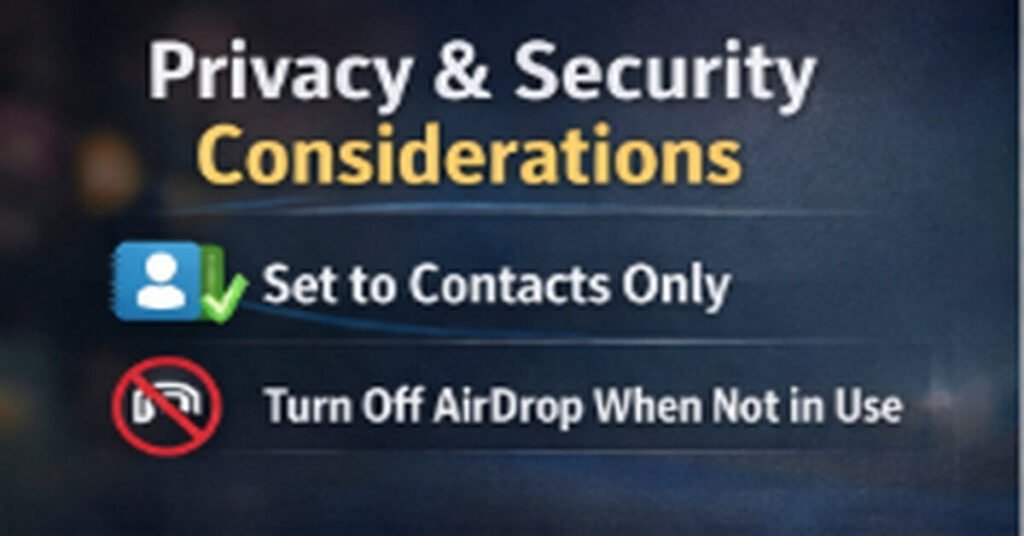
6.1 Set AirDrop to Contacts Only
How to Change AirDrop Name. To reduce exposure:
- Open Control Center.
- Press and hold the network settings panel.
- Tap AirDrop.
- Select Contacts Only.
6.2 Turn Off AirDrop When Not in Use
In public spaces, turning AirDrop off prevents unwanted visibility.
This is especially useful in crowded areas like airports or campuses.
7. What If Your AirDrop Name Doesn’t Update?
Sometimes you change the device name… but others still see the old one.
Frustrating, yes. But fixable.
7.1 Restart the Device
- Power off your device.
- Wait 10 seconds.
- Turn it back on.
Simple, but often effective.
7.2 Toggle AirDrop Off and On
- If you’ve changed your device name but the old AirDrop name is still showing, don’t panic. Sometimes AirDrop just needs a quick refresh. The easiest fix? Turn it off and then back on again. It sounds simple—almost too simple—but it often works.
- On iPhone or iPad, open Control Center by swiping down from the top-right corner (or up from the bottom on older models). Press and hold the network settings box where you see Wi-Fi and Bluetooth. Tap AirDrop, select Receiving Off, wait about 5–10 seconds, then turn it back to Contacts Only or Everyone.
- On Mac, open Finder, click AirDrop from the sidebar, and toggle visibility off and back on.
- This process refreshes nearby device detection and clears minor connection glitches. If AirDrop was stuck showing the old name, this quick toggle usually forces it to update properly—no advanced troubleshooting required.
- Turn AirDrop off.
- Wait 5–10 seconds.
- Turn it back on.
This refreshes the connection.
7.3 Reset Network Settings
How to Change AirDrop Name. If your AirDrop name still isn’t updating—or AirDrop just isn’t working properly—Reset Network Settings can help. This option refreshes all network-related configurations on your device and often fixes hidden connectivity glitches.
When you reset network settings, your iPhone or iPad will erase saved Wi-Fi passwords, Bluetooth pairings, VPN configurations, and cellular settings. It does not delete photos, apps, messages, or personal data. So your content remains safe.
To reset network settings:
- Open Settings.
- Tap General.
- Select Transfer or Reset iPhone (or iPad).
- Tap Reset.
- Choose Reset Network Settings.
- Enter your passcode and confirm.
Your device will restart automatically.
After rebooting, reconnect to Wi-Fi and test AirDrop again. In many cases, this simple reset clears outdated network caches and resolves device name syncing issues. Just remember—you’ll need to re-enter Wi-Fi passwords afterward.
7.4 Check Apple ID Contact Info
How to Change AirDrop Name If your AirDrop name isn’t showing the way you expect—especially when using Contacts Only mode—your Apple ID contact card might be the reason. Sometimes, instead of just displaying your device name, AirDrop references the information saved in your Apple ID profile. That’s why it’s important to review it carefully.
To check your Apple ID contact info on iPhone or iPad, open Settings and tap your name at the very top. This opens your Apple ID dashboard. From there, review your name, phone number, and email address. Make sure everything is spelled correctly and updated. If your full legal name appears and you’d prefer something shorter, you can edit your contact card in the Contacts app.
On Mac, go to System Settings, click your Apple ID, and review your profile details there.
Verify:
- Open Settings.
- Tap your Apple ID profile.
- Review your contact details.
8. Does Changing AirDrop Name Affect Other Settings?
Yes, and this is important.
When you change the AirDrop name, you also change:
- Bluetooth device name
- Personal hotspot name
- Finder device name (on Mac)
- Backup device identification
So choose a name that works everywhere.
9. Common Mistakes People Make
How to Change AirDrop Name. Even though changing your AirDrop name is straightforward, many people still trip over a few common pitfalls. One of the biggest mistakes is looking for a separate “AirDrop name” setting. Apple doesn’t provide a unique nickname option for AirDrop—the name is directly tied to your device. People often waste time searching for a hidden menu that doesn’t exist.
Another frequent mistake is forgetting to restart the device after changing the name. Sometimes, even after updating the device name, AirDrop continues to show the old one until the phone, iPad, or Mac is restarted.
Using overly long names or special characters is another common misstep. AirDrop windows can cut off long names, and unusual symbols might display incorrectly on other devices.
Lastly, many overlook privacy settings. If your AirDrop is set to “Everyone,” even a newly changed name might still expose your device to strangers unnecessarily.Let’s clear up a few misunderstandings.
9.1 Looking for an “AirDrop Name” Setting
It doesn’t exist.
You must rename the device.
9.2 Forgetting to Restart
Sometimes the update needs a quick reboot.
9.3 Using Special Characters
Some symbols may cause display issues. Keep it simple.
10. Best Practices When Naming Your Device
Naming your device may seem minor, but a thoughtful name can How to Change AirDrop Name (Complete Step-by-Step Guide for iPhone, iPad & Mac) save you confusion and improve privacy. First, keep it short and clear. Long names often get cut off on AirDrop or Bluetooth lists, so something like “Mudasir iPhone” works better than “Mudasir’s Super Fast iPhone 14 Pro Max”.
Second, avoid personal information. Using your full name, phone number, or email can expose sensitive details to strangers when AirDrop is visible. Stick to nicknames, first names, or functional labels like “Office iPad” or “Travel MacBook”.
Third, make it recognizable for easy identification. If you have multiple Apple devices, consider adding the device type or location, e.g., “Bedroom iPad” or “Work MacBook”.
Lastly, stay consistent. A naming convention across your devices keeps everything organized and makes sharing files via AirDrop quick, easy, and professional.If you want practical advice, here it is.
10.1 Keep It Short
Long names get cut off in the AirDrop window.
10.2 Avoid Personal Data
Don’t include:
- Full legal name
- Phone number
- Email address
10.3 Use Clear Identification
Examples:
- “Mudasir iPhone”
- “Office MacBook”
- “Travel iPad”
Simple. Recognizable. Clean.
11. FAQs About Changing AirDrop Name
11.1 Is changing the AirDrop name safe?
Yes. It only modifies the device name.
11.2 Does it affect iCloud?
No. Your Apple ID remains the same.
11.3 Why does my AirDrop show email instead of device name?
If sending to Contacts Only, your contact card may appear instead.
11.4 Can I set a separate AirDrop nickname?
No. AirDrop uses your device name only.
12. Final Thoughts
Changing your AirDrop name is one of those tiny tweaks that makes your device feel more organized—and honestly, more personal.
It takes less than a minute.
But that one-minute adjustment can:
- Improve privacy
- Reduce confusion
- Make file sharing smoother
- Prevent awkward moments
If your device name still says something outdated, random, or slightly embarrassing… now you know exactly how to fix it.
Go ahead. Change AirDrop name. It’s a small update—but surprisingly satisfying.